How to Use the Collier County CityView Permit Portal
What Is CityView?
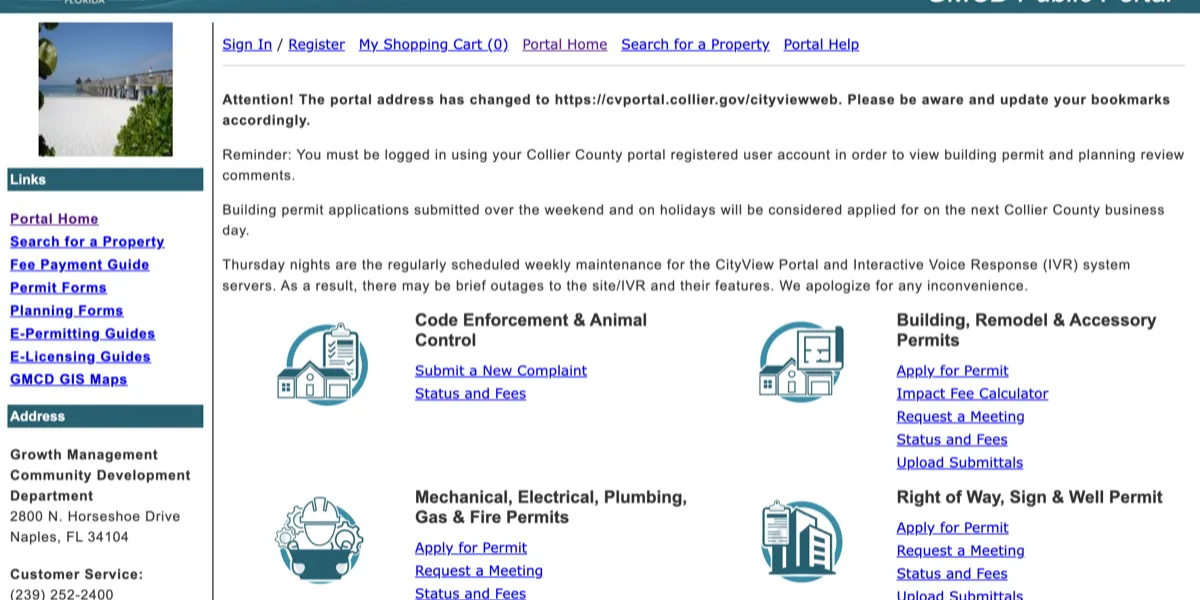
CityView is Collier County’s official online permitting platform, accessible at cvportal.colliercountyfl.gov. It covers the full lifecycle of a permit, from application submission and plan review through inspections and permit closure. Nearly all permit types for unincorporated Collier County (including Naples, Golden Gate Estates, Immokalee, and Ave Maria) are processed through this system.
The portal replaced the previous paper-based process and is now the primary way contractors and homeowners interact with the Growth Management Department for permitting.
Creating Your Account
Before you can submit anything, you need a CityView account. The registration process is different for licensed contractors and homeowners pulling owner-builder permits.
For licensed contractors:
- Navigate to the CityView portal and select “Register”
- Enter your Florida contractor license number, business name, and contact information
- Provide your qualifier’s name if you are registering a company
- Upload a copy of your current Collier County Local Business Tax Receipt (if required)
- Submit and wait for account verification — this typically takes 1–2 business days as county staff confirms your license status
For homeowners (owner-builders):
- Select the homeowner registration option
- Provide your name, property address, folio number, and contact information
- You will need to sign the owner-builder disclosure form during the application process, acknowledging your responsibility for code compliance, worker’s compensation, and liability
- Homeowner accounts are usually activated within 24 hours
Keep your login credentials in a safe place. You’ll return to the portal repeatedly throughout the life of your permit for status checks, resubmittals, and inspection scheduling.
Navigating the Dashboard
Once logged in, the CityView dashboard is your home base. Key sections include:
- My Permits: all permits associated with your account, with current status indicators
- New Application: start a new permit submission
- Inspections: scheduled, passed, and failed inspections
- Messages/Comments: reviewer feedback and system notifications
- Payments: fee summaries and payment history
The interface can feel cluttered at first. Focus on the left sidebar navigation and the status column in your permits list. Permit statuses (“Submitted,” “In Review,” “Comments Issued,” “Approved,” “Issued”) tell you exactly where your project stands in the pipeline.
How to Submit a New Permit Application
Submitting a permit is a multi-step form:
- Click “New Application” from the dashboard
- Select the permit type: building, electrical, plumbing, mechanical, roofing, or right-of-way
- Enter the property address or folio number. The system will auto-populate property details from the Collier County Property Appraiser records.
- Fill out project details: description of work, estimated valuation, contractor information, and property owner information
- Upload required documents: plans, surveys, energy calculations, product approvals, and any other items listed on the ISR checklist for your permit type (see our building permit guide for full ISR details)
- Review and submit. Double-check every field before hitting submit. Errors here can cause the application to be returned at intake.
- Pay plan review fees. The portal calculates fees based on your project details and prompts for payment via credit card or eCheck.
After submission, your permit enters the intake review queue. Intake staff verify that all required documents are present before routing to plan reviewers.
Document Upload Requirements
The upload step is where most portal issues occur. Follow these guidelines to avoid rejection:
- Accepted file formats: PDF is required for plans and documents. Some supplementary items accept JPG or PNG.
- File size limits: Individual files should not exceed 50 MB. If your sealed plans exceed this, split them into separate sheets.
- File naming conventions: Use clear, descriptive names. Instead of “Document1.pdf,” name files like “Floor-Plan-A1.pdf,” “Electrical-Layout-E1.pdf,” or “Energy-Calcs-Manual-J.pdf.” Reviewers process hundreds of files daily, and clear names speed up your review.
- Resolution: Plans must be legible at full scale. Low-resolution scans will be rejected. Minimum 200 DPI for scanned documents.
- Sealed plans: The architect or engineer’s digital seal and signature must be clearly visible. If uploading scanned hardcopy plans, make sure the seal is not cut off or obscured.
Upload each document to the correct category slot in the application form. Mislabeled uploads (putting your survey in the “site plan” slot, for example) can trigger a correction request that delays your review.
How to Check Your Permit Status
You don’t need to call the county to find out where your permit stands. From the CityView dashboard:
- Go to My Permits
- Locate your permit by number, address, or date
- Click the permit record to open the detail view
- The Status field shows the current stage: Submitted, In Review, Comments Issued, Approved, or Issued
- The Review Status section shows each reviewing department (building, zoning, fire, environmental) and their individual approval status
If your permit shows “Comments Issued,” reviewer feedback is waiting for you. Don’t let it sit. Every day a comment goes unanswered is a day added to your timeline.
Responding to Reviewer Comments Online
When a plan reviewer flags an issue, you’ll receive an email notification and a message in your CityView account. To respond:
- Open the permit record from your dashboard
- Navigate to the Comments or Review section
- Read each comment carefully — they are organized by reviewing department
- Prepare revised documents or written responses addressing each specific point
- Upload the revised files directly in response to the corresponding comment
- Submit the resubmittal
Important: Address all comments in a single resubmittal whenever possible. Partial responses send your application back to the end of the review queue for each cycle. If one comment requires input from your engineer and another is a simple clarification, wait until you have both responses ready before resubmitting.
Resubmittal review times are generally shorter than the initial review — typically 1–5 business days depending on the complexity of the changes.
How to Schedule Inspections Through the Portal
Once your permit is issued and construction is underway, you’ll schedule inspections at each required milestone through CityView.
- Open your issued permit from the dashboard
- Navigate to the Inspections section
- Click Request Inspection
- Select the inspection type (foundation, framing, electrical rough-in, plumbing rough-in, mechanical, insulation, drywall, final, etc.)
- Choose your preferred date — inspections are typically available next business day if requested before the cutoff time (usually 4:00 PM)
- Confirm the request
After the inspection, results appear in the portal as Passed, Failed, or Partial. If an inspection fails, the inspector’s correction notice will be posted in the permit record. Fix the deficiency and request a re-inspection through the same process.
You can also schedule inspections by calling the Growth Management Department at (239) 252-2400, but the portal method provides a written record and confirmation.
Searching for Existing Permits and Permit History
CityView allows you to search for any permit ever issued in unincorporated Collier County — not just your own. This is useful when:
- Buying a property and checking for open or expired permits
- Verifying that previous work was permitted and finaled
- Looking up a contractor’s permit history
- Researching comparable projects in your neighborhood
From the portal’s public search page, enter an address, folio number, permit number, or contractor name. The system returns all matching permit records with their status, inspection history, and associated documents.
Tips for Avoiding Common Portal Errors
Based on the issues we see most frequently:
- Browser compatibility. CityView works best in Chrome or Edge. Safari and Firefox occasionally cause upload failures or display issues.
- Session timeouts. The portal times out after a period of inactivity. Save your progress frequently, or prepare all your information before starting the application.
- Pop-up blockers. Payment processing and document viewing may require pop-ups. Whitelist the CityView domain in your browser.
- Duplicate applications. If your submission errors out, check your dashboard before resubmitting. The system may have captured the first attempt, and a duplicate can cause confusion.
- Uploading the wrong revision. When resubmitting, make sure you’re uploading the corrected document, not the original. Clearly mark revised plans with a revision number and date.
When You Still Need to Visit in Person
The portal handles most transactions, but some situations still require an in-person visit to the Growth Management Department at 2800 N. Horseshoe Drive, Naples, FL 34104:
- Pre-application meetings for large or complex projects. A face-to-face meeting with review staff is recommended before submitting.
- Variance and zoning hearings, which require physical attendance or scheduled virtual participation.
- Hardcopy plan submissions. Certain projects (especially large commercial) may require physical plan sets in addition to digital uploads.
- Payment issues. If online payment fails repeatedly, the cashier’s office can process payments in person.
- Account verification problems. If your contractor account isn’t activating through the portal, bring your license documentation to the front desk.
Office hours are Monday through Friday, 8:00 AM to 5:00 PM. Walk-ins are accepted, but appointments are recommended for pre-application meetings.
Frequently Asked Questions
Is CityView the same as ePermitting? Yes. Collier County’s e-permitting system is powered by CityView. You may see both terms used interchangeably on county websites and forms. The portal URL is cvportal.colliercountyfl.gov.
Can I use CityView for City of Naples or Marco Island permits? No. CityView only processes permits for unincorporated Collier County. The City of Naples and Marco Island each operate their own permitting systems and offices. Make sure you know your property’s jurisdiction before applying.
Do I need a separate account for each permit? No. One account handles all of your permits. Contractors will see every permit they’ve pulled across all properties. Homeowners will see permits associated with their registered property.
What if I can’t upload my documents — the portal keeps erroring out? First, try switching to Chrome and disabling pop-up blockers. Clear your browser cache and try again. If the issue persists, call (239) 252-2400 for technical support, or visit the Growth Management Department in person at 2800 N. Horseshoe Drive to submit hardcopy documents.
Can I give my permit expediter access to my CityView account? Yes. You can share your login credentials with your authorized representative, or some contractors add permit expediters as authorized contacts on their account. This allows your expediter to submit applications, upload documents, and respond to comments on your behalf.
Let Us Handle the Portal for You
CityView is a powerful tool, but using it efficiently takes experience. Document formatting, naming conventions, reviewer comment responses, inspection scheduling — small errors in any of these add up to big delays.
Collier Permitting Services manages the entire CityView process for contractors and homeowners across Naples, Golden Gate, Immokalee, and all of unincorporated Collier County. We submit applications, monitor review status daily, coordinate resubmittals, and schedule inspections so you don’t have to learn the portal the hard way.
Call us at (239) 289-5630 or visit our website to get started.
See also: Building Permit Step-by-Step | Permit Fees in Collier County | Residential Permit Process

Have Questions About Your Permit?
Our team has 40+ years navigating Collier County permitting. Let us handle the paperwork so you can focus on building.
Get a Free Consultation